

Create API Credentials
Create, store, and revoke the client ID and client secret that your scripts, pipelines, and internal tools use to authenticate with the Scrut API.
Who can use this feature
Supported on Foundation, Growth, and Scale plans
API credentials let your scripts, pipelines, and internal tools connect to your compliance data through the Scrut API. Each credential has a client ID and a client secret, which your integration exchanges for a short-lived access token.
Note: You need Org Admin permissions in Scrut to generate and manage API credentials.
Create a Credential
Open the Developer Console
Log in to Scrut and navigate to Settings → Developer Console.
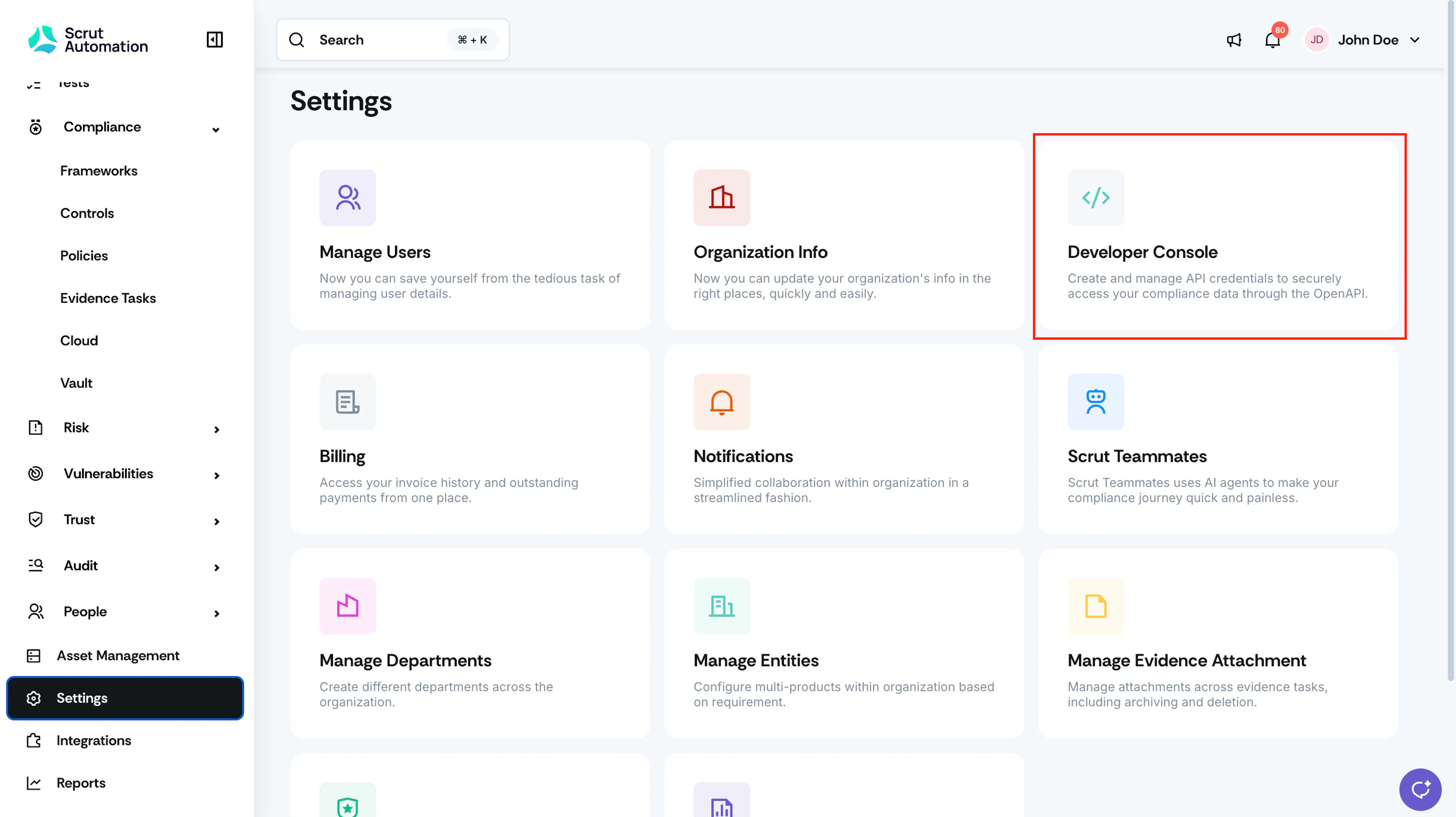
Start a new credential
Click Create API Credential.
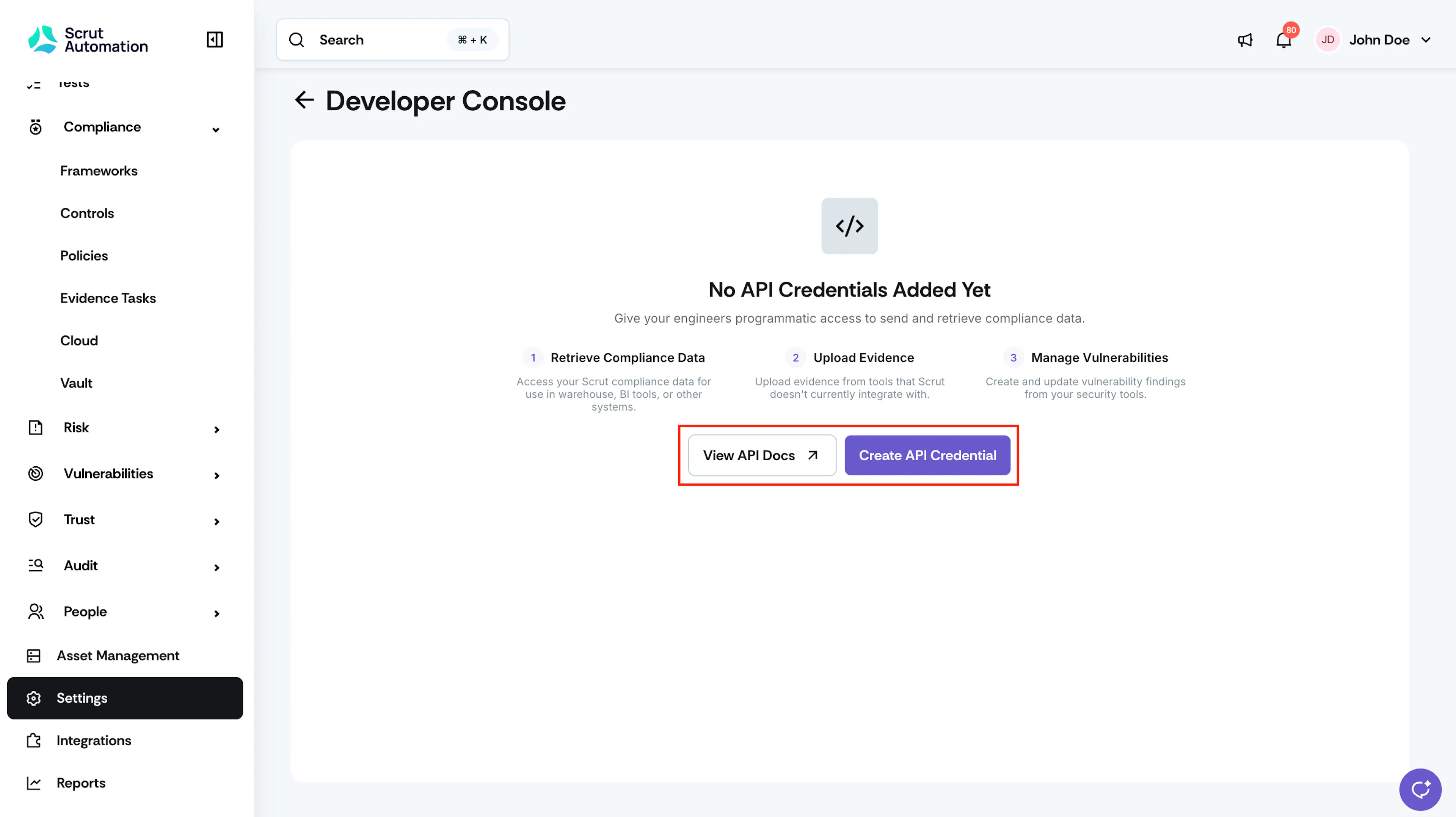
Name the credential
Enter a name in the Credential Name field. Choose a name that identifies the integration, such as prod-bi-pipeline. Names can be up to 50 characters, must be unique in your organization, and can't be changed after you create the credential.
Set an expiry
Select an option from the Expiry dropdown. If you select Custom Date, pick the expiry date from the calendar.
Choose a scope
Select Read Only or Read & Write under Scope.
Create the credential
Click Create Credential.
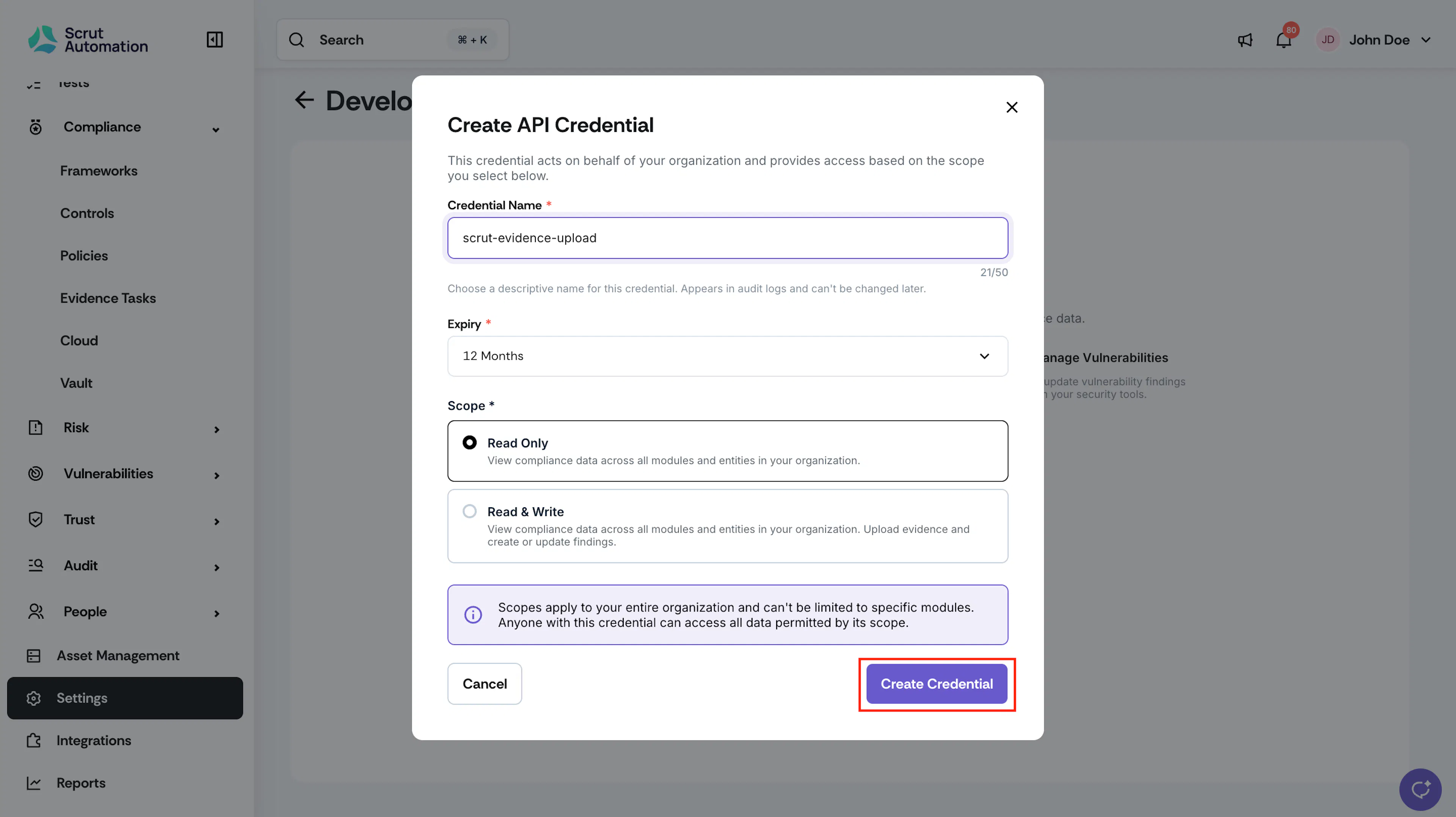
Expiry Options
| Option | What it means |
|---|---|
| 12 months | The credential expires 12 months after you create it. Default. |
| Never | The credential stays active until you revoke it. |
| Custom Date | The credential expires on the date you pick. |
When a credential expires, every request that uses it fails with an authentication error. Create a new credential and update your integration before the expiry date.
Scope Options
| Scope | What the credential can do |
|---|---|
| Read Only | View compliance data across all modules and entities in your organization. |
| Read & Write | View compliance data across all modules and entities in your organization, upload evidence, and create or update vulnerability findings. |
Heads Up! Scopes apply to your entire organization and can't be limited to specific modules or entities. Anyone with the credential can access all data its scope permits.
Copy and Store Your Client Secret
After you click Create Credential, Scrut shows the credential's Client ID and Client Secret.
Copy the credentials
Click the copy icon next to Client ID and Client Secret, or click Copy both as JSON.
Store them securely
Save both values in a secure location, such as a secrets manager or environment variables.
Confirm you stored the secret
Select I've copied and securely stored the client secret. The Close button stays unavailable until you select this checkbox.
Close the window
Click Close.
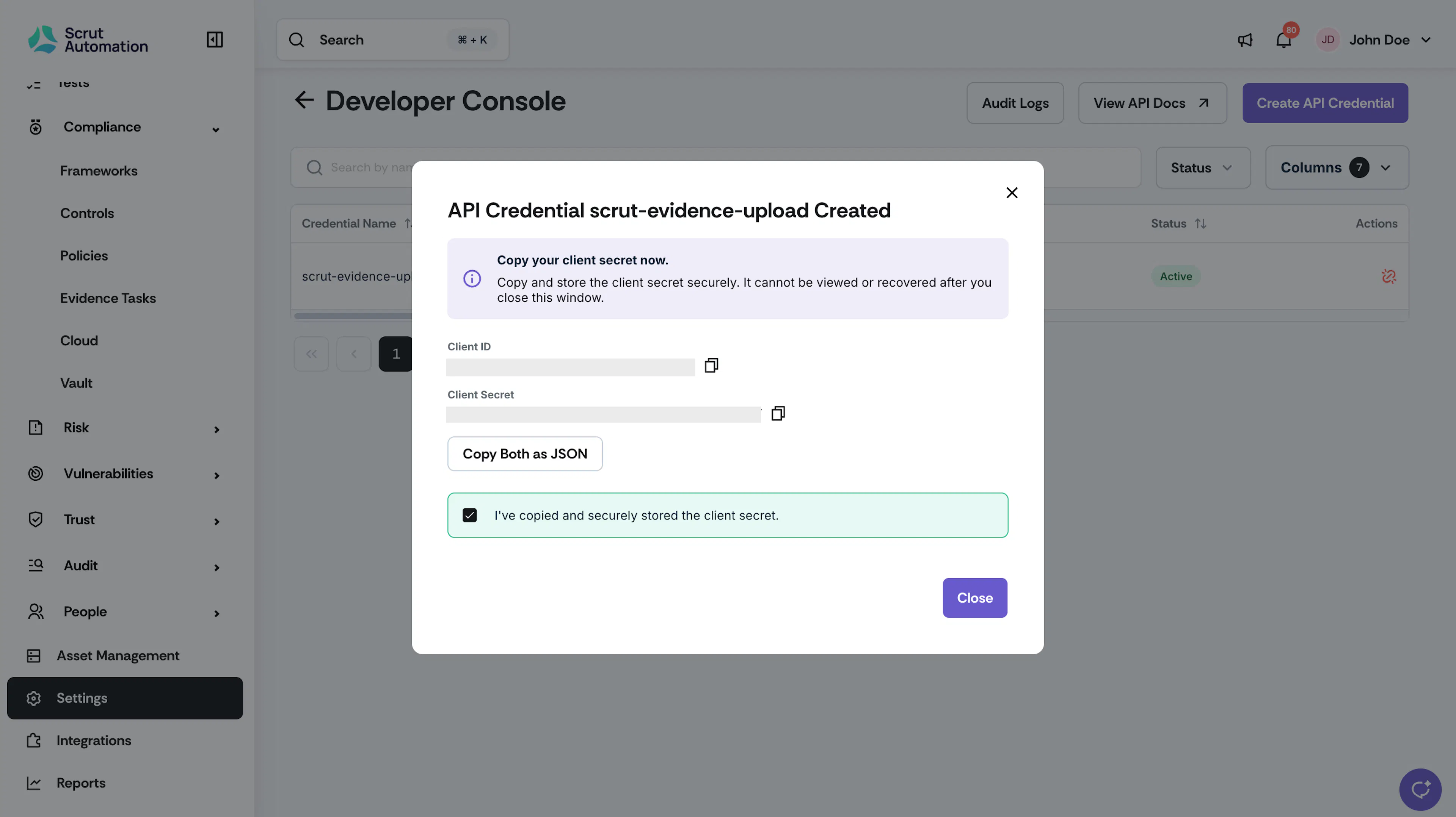
Important: The client secret is shown only once. You can't view or recover it after you close this window. If you lose it, revoke the credential and create a new one. Never commit credentials to version control or expose them in client-side code.
The credential is now active, and a confirmation message appears. Use the client ID and client secret to request an access token.
Revoke a Credential
Revoke a credential when you no longer need it, or if the client secret is lost or exposed. Revoking a credential invalidates all of its access tokens immediately, so any integration that uses it stops working right away. You can't undo this action.
Open the Developer Console
Navigate to Settings → Developer Console.
Select the credential to revoke
Find the credential and click Revoke.
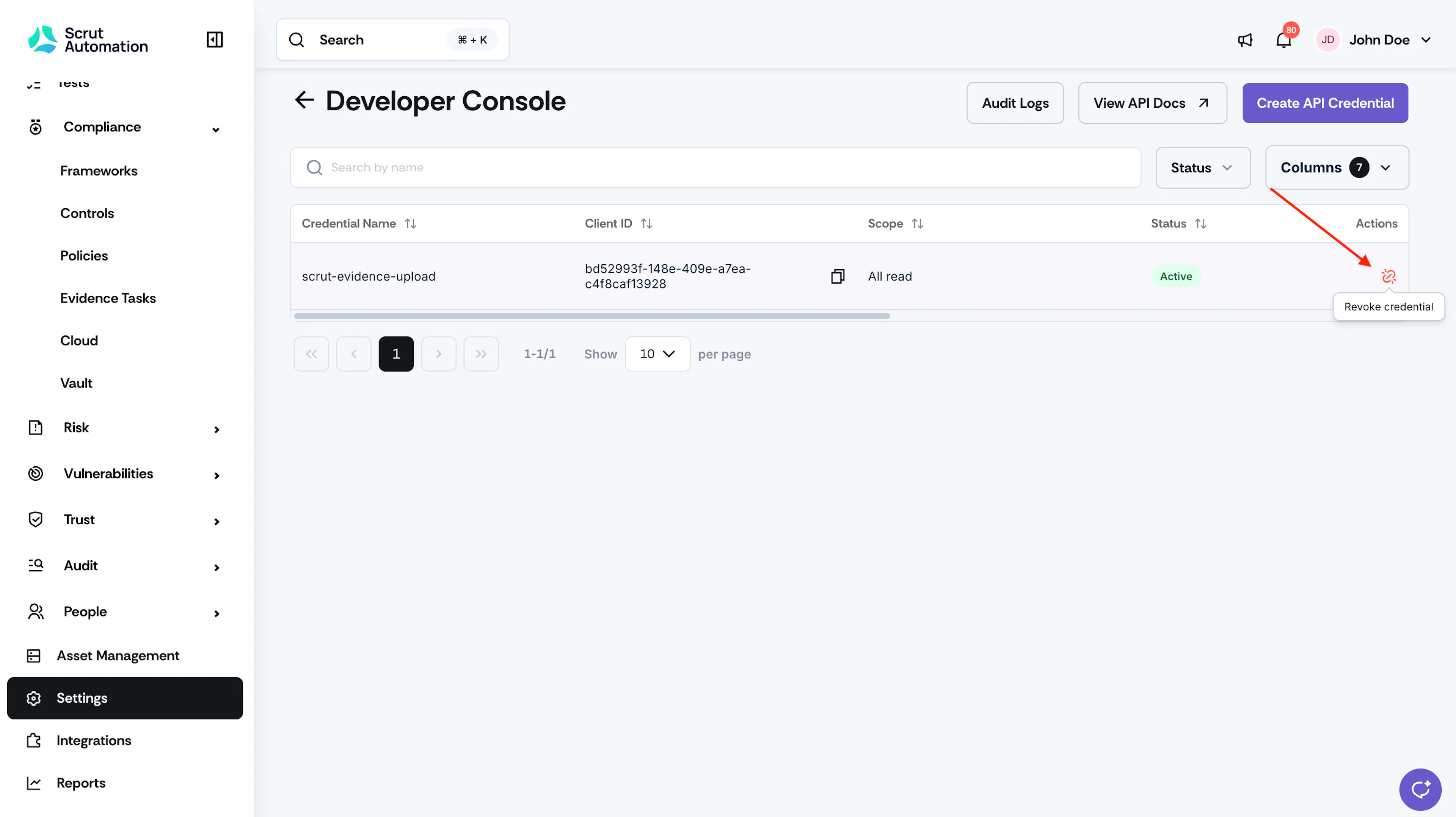
Review the warning
Check when the credential was last used and which integrations depend on it.
Confirm the revocation
Type REVOKE in the confirmation field. You must type the word, as pasting isn't supported in this field.
Revoke the credential
Click Revoke.
The credential is revoked, and a confirmation message appears. Create a new credential and update the affected integrations to restore access.
Audit Logs
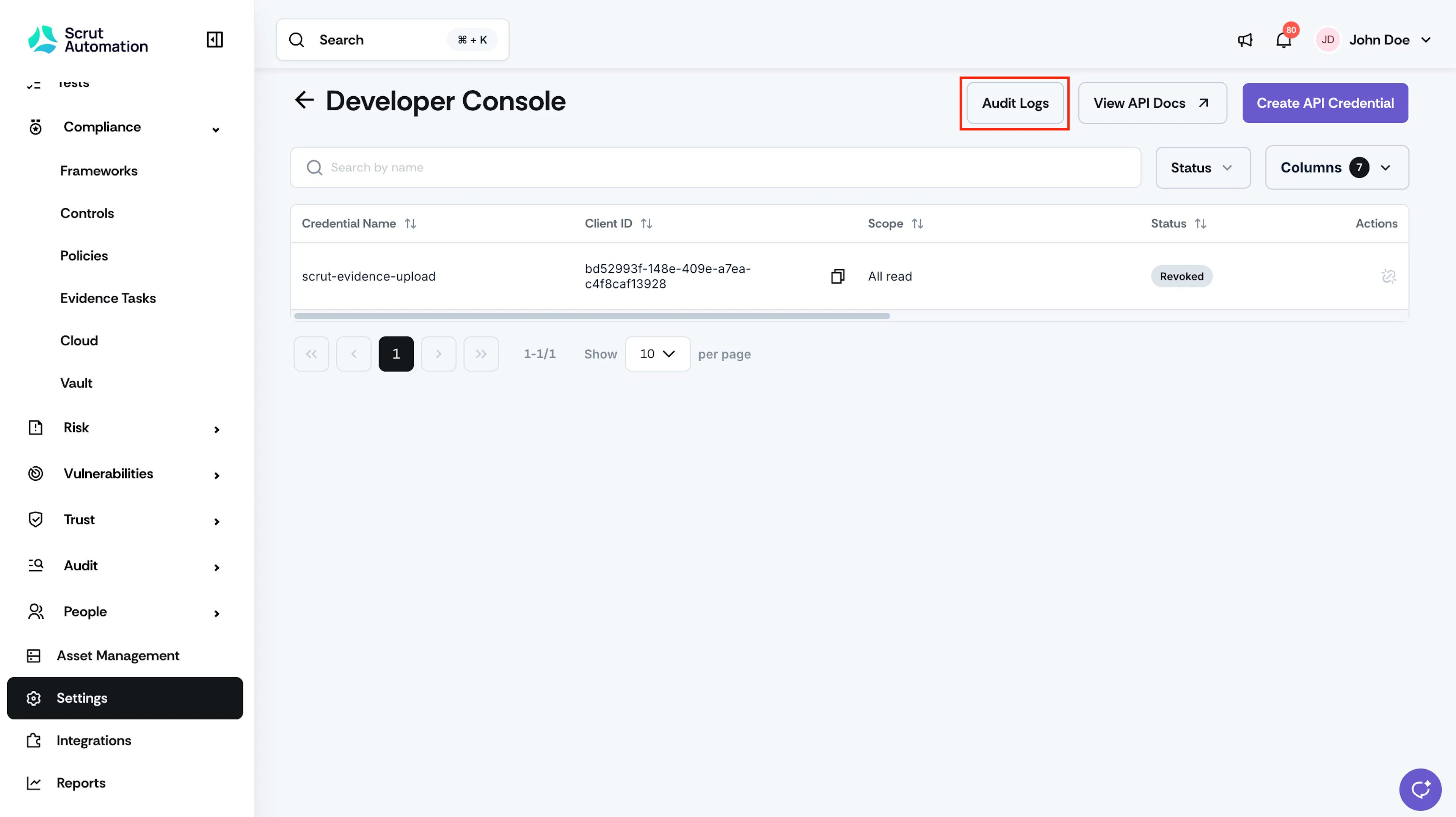
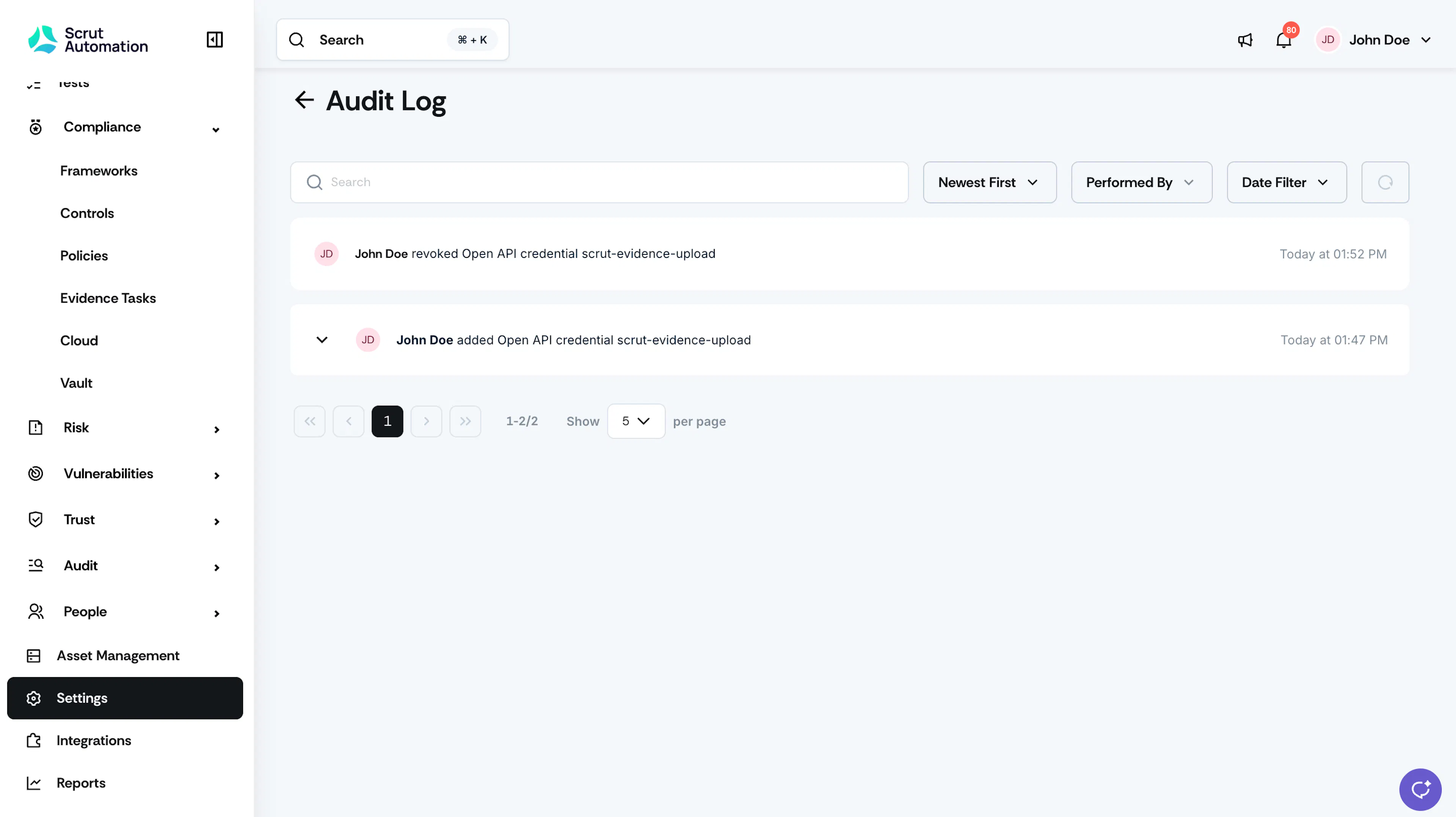
Scrut records credential activity so you can trace every change back to its source:
- The Developer Console → Audit Logs capture all actions, including credential creation and revocation.
- Evidence uploaded through the API is logged in the evidence task's Audit Logs tab, with the credential name as the actor. For example:
prod-bi-pipeline (API) uploaded evidence attachment. - Vulnerabilities created or updated through the API are logged with the credential name as the actor.
This is why a descriptive credential name matters. It's the name your team sees when reviewing API activity.
FAQs
Contact support@scrut.io for further assistance.